

Salesforce Commerce Cloud
The Antavo Integration Cartridge empowers Salesforce Commerce Cloud developers to build Antavo-powered e-commerce storefronts.
The cartridge offers a comprehensive and scalable suite of features directly within Salesforce Commerce Cloud (SFCC), enhancing customer engagement and retention through loyalty programs. Customers can earn rewards for various actions, such as making purchases, sharing content, and completing challenges. These rewards include enticing benefits like free shipping, exclusive experiences, coupons, and gift cards. Loyalty program members can also access their point balances, tier information and track the progress of challenges.
All loyalty program settings and configurations can be modified within both Salesforce and Antavo platforms.
Key features
- Embed Antavo functionalities into the Commerce Cloud storefront for a unified customer experience.
- Reward customers with loyalty points for actions such as purchases and engagement.
- Enable customers to redeem points for coupons, physical goods, and virtual rewards.
- Display customer loyalty profile information and track tier progression.
- Manage loyalty program status, enabling customers to opt in or out of the loyalty program.
Setting up the Antavo integration in SFCC
The Antavo integration in Salesforce Commerce Cloud is supported for projects based on the SFRA, SiteGenesis, and the PWA Kit architectures. This guide demonstrates the setup of the Antavo integration using a demo site import on the SFRA architecture. The setup process for the Antavo cartridges, services, jobs, and custom preferences is the same for both new and existing storefronts.
The main difference when setting up the Antavo integration across the SFRA, SiteGenesis, and PWA Kit architectures is in the cartridges used:
- The
int_antavocartridge contains the core logic for the Antavo integration and is shared across all architectures. - The
int_antavo_sfracartridge contains the business logic specific to the SFRA architecture, and is not required for SiteGenesis or PWA Kit projects. - The
int_antavo_changesandint_antavo_sgcartridges are specific to the SiteGenesis architecture, and are not required for SFRA or PWA Kit projects.- The
int_antavo_changescartridge contains UI templates, controllers, models and form overrides for the SiteGenesis architecture. - The
int_antavo_sgcartridge contains the business logic specific to the SiteGenesis architecture.
- The
Setting up the Antavo integration on PWA Kit projects requires some additional steps which are described in the PWA Kit-specific installation steps section. Skip this section if you are setting up the Antavo integration on a SFRA or SiteGensis-based project.
NoteAll integrations should be performed by a technical team member and should be consistent with Salesforce Commerce Cloud integration standards.
Prerequisites
Before you can set up the Antavo integration in Salesforce Commerce Cloud, make sure you have the following:
- the latest version of the Antavo cartridges
- the
antavo_site_importfolder - the
pwa-kit-overridesfolder (only required for PWA Kit-based projects)
NoteReach out to the Antavo Service Desk to obtain a zip file containing the above data. If you are not an Antavo customer yet, please reach out to our sales or partnership teams .
PWA Kit-specific installation steps
NoteSkip this section if you are setting up the Antavo integration on a SFRA or SiteGensis-based project.
To install the Antavo integration on a PWA Kit architecture, follow the steps below:
- Set up a demo storefront and a demo sandbox for the back-end using the PWA Kit architecture, follow SFCC's Quick Start guide.
- Ensure that a PWA Kit Managed Runtime project is set up. For detailed instructions on creating and configuring your local environment, refer to SFCC's Set Up Your Local Environment guide.
- Open the SLAS Admin API to create a SLAS Client. Refer to SFCC's Create a SLAS Client guide.
- In the SLAS client configuration, add the following additional scopes to ensure the successful authentication and communication between the React App, SFCC, and Antavo:
c_loyalty.rwc_loyalty
- Use the Retail React App storefront template and your B2C Commerce instance for the back-end, then provide the necessary configuration values.
- Copy-paste the
pwa-kit-overridesfolder provided by the Antavo Service Desk and theapi.jsfile from the PWA Kit Antavo project to your project's root folder.
NoteThe
api.jsfile specifies a link to the current runtime project. In case you use a different runtime project, make sure you modify the link in theapi.jsfile.
- Continue with the installation steps described in the Install the Antavo cartridges on your project section.
Install the Antavo cartridges on your project
- Upload the necessary Antavo cartridges to your project via WebDAV. Refer to Salesforce's Cartridges documentation for more information. The required cartridges depend on the architecture used:
- For SFRA projects, upload the
int_antavoandint_antavo_sfracartridges - For SiteGenesis projects, upload the
int_antavo,int_antavo_changes, andint_antavo_sgcartridges - For PWA Kit projects, upload the
int_antavocartridge
- For SFRA projects, upload the
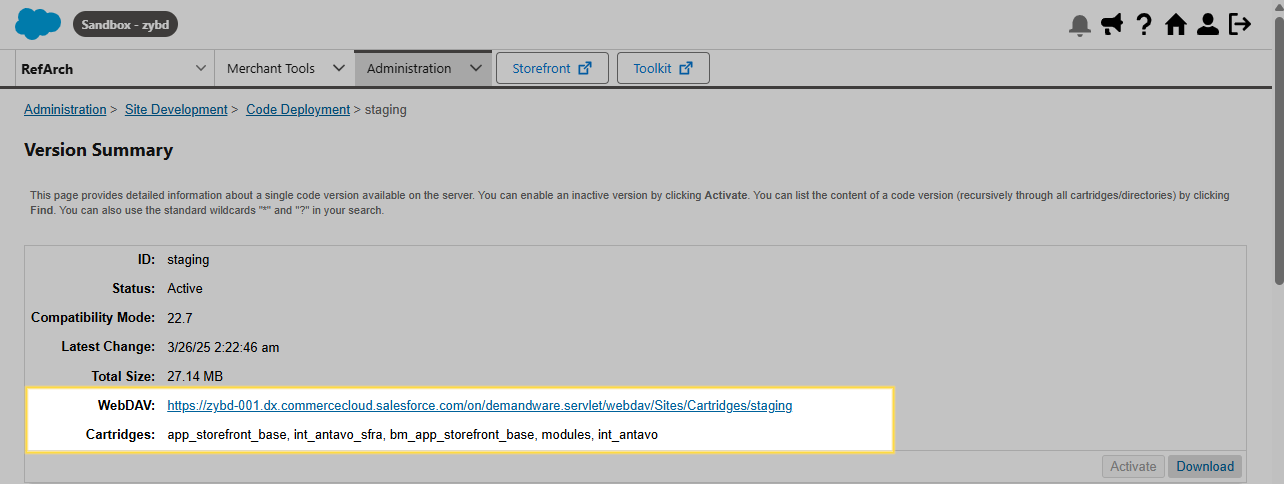
To find the WebDAV link for your code version:
- In Business Manager, go to Administration > Site Development > Code Deployment, then click the code version to which you want to add the cartridges.
- Copy the WebDAV link, then use your file browser or a WebDAV client to add the Antavo cartridges to the code version.
- Once the cartridges have been uploaded, they appear in the Cartridges list on the summary page of the code version.
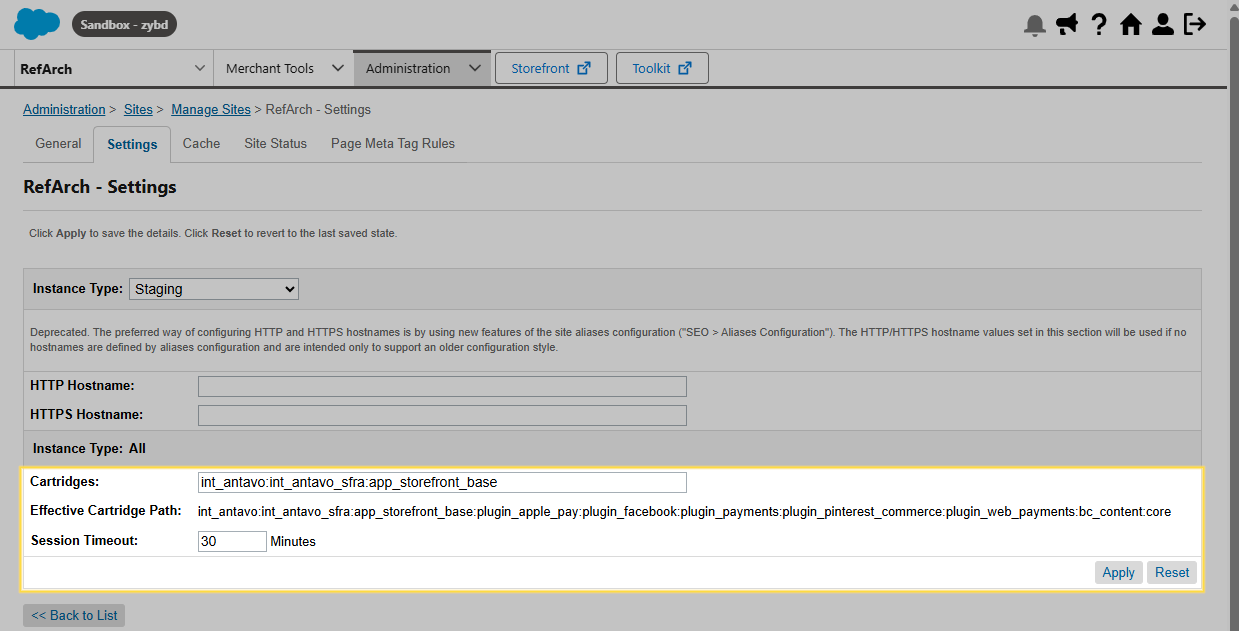
- To register the cartridges, you need to add them to your site's cartridge path.
-
Go to Administration > Sites > Manage Sites, then click the name of the site for which you want to enable the cartridges.
-
Open the Settings tab.
-
In the Cartridges field, add the names of the Antavo cartridges, separated by a colon. Note that cartridges take precedence in order from left to right. Refer to Salesforce's Cartridges documentation for more information.
- For SFRA projects, add
int_antavo:int_antavo_sfra - For SiteGenesis projects, add
int_antavo:int_antavo_changes:int_antavo_sg - For PWA Kit projects, add
int_antavo
- For SFRA projects, add
-
Click Apply.
Import the Antavo metadata
To import all required data to your environment:
- Create a zip file from the
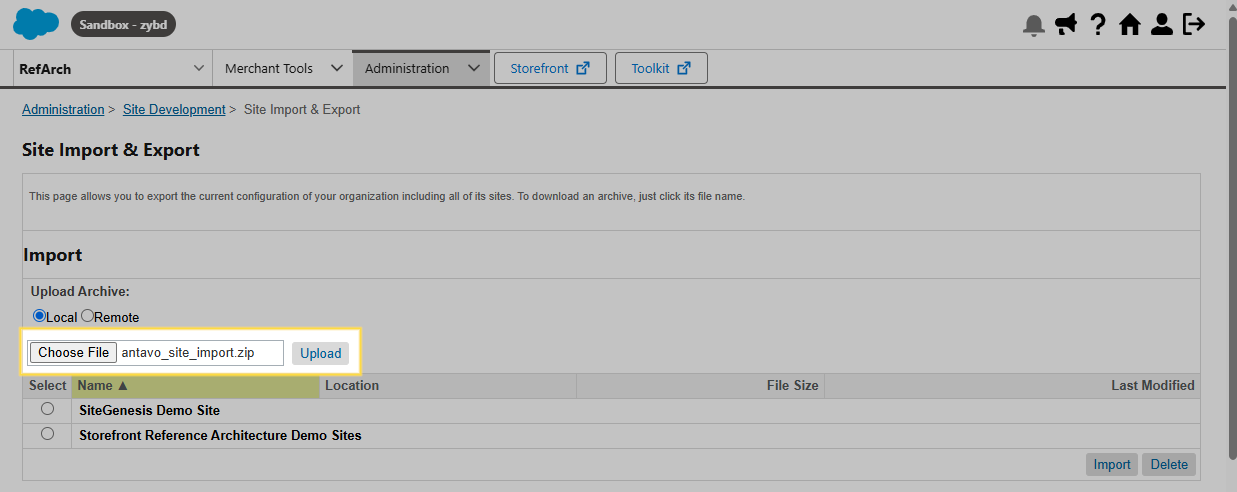
antavo_site_importfolder that you received from the Antavo Service Desk. - Go to Administration > Site Development > Site Import & Export.
- Under Import, click Choose File, then locate and select the
antavo_site_import.zipfile on your computer. This file includes the Antavo-specific services and jobs as well as site-related Antavo custom site preferences and attributes, and payment methods and payment processors. - Click Upload.
-
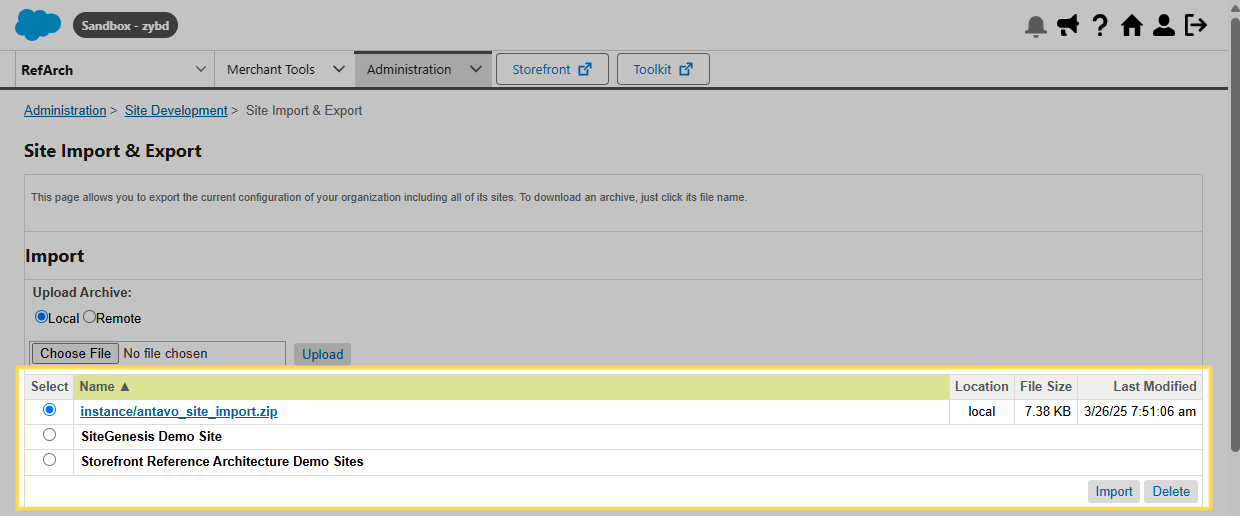
Select the
antavo_site_import.zipin the list, then click Import.You can check the status of the import process in the Status section at the bottom of the page. The status of the import indicates if the process was successful or if any errors were encountered. In case of errors, you can click the process link to see a log with additional information.
Configure the Antavo service
After the site import is complete, you need to configure the Antavo service:
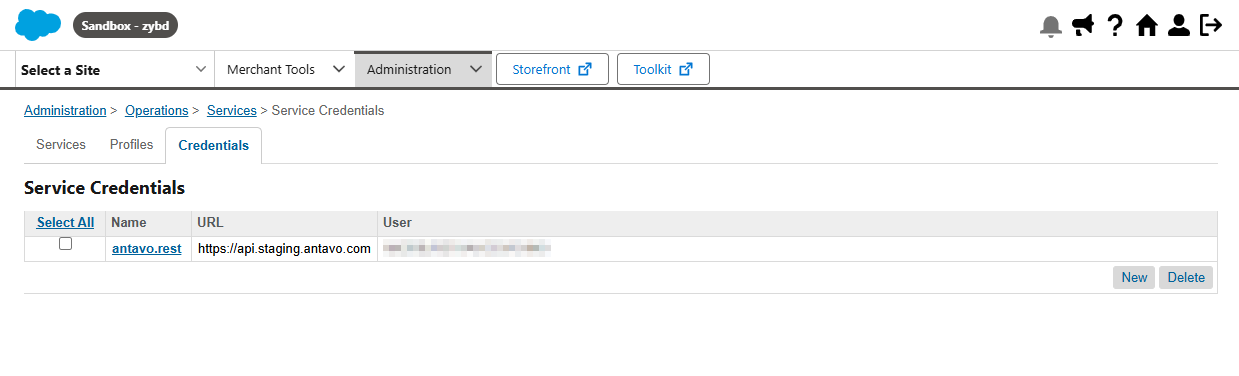
- Go to Administration > Operations > Services.
- Open the Credentials tab, then click the name of the Antavo service.
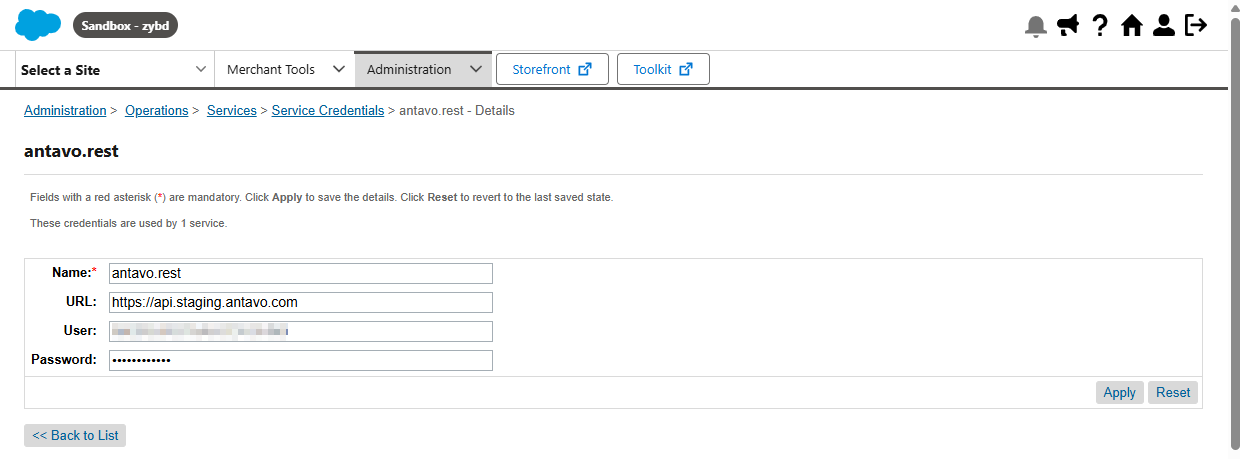
- Enter the credentials for your Antavo workspace. You can find the required values on the API settings page of the Management UI.
- In the URL field, enter the API URL.
- In the User field, enter the API key.
- In the Password field, enter the API secret.
- Click Apply.
NoteIf you want to connect your Salesforce Commerce Cloud sites to multiple Antavo workspaces (e.g., on different environments), you will need to set up a separate service for each workspace. Also note that only one service can be set up for a single Salesforce Commerce Cloud site.
Connect a site to an Antavo workspace and account
As the last step of the configuration of the Antavo integration in Salesforce Commerce Cloud, you need to set up the Antavo-specific custom site preferences, and map the attributes to be synchronized between the two platforms.
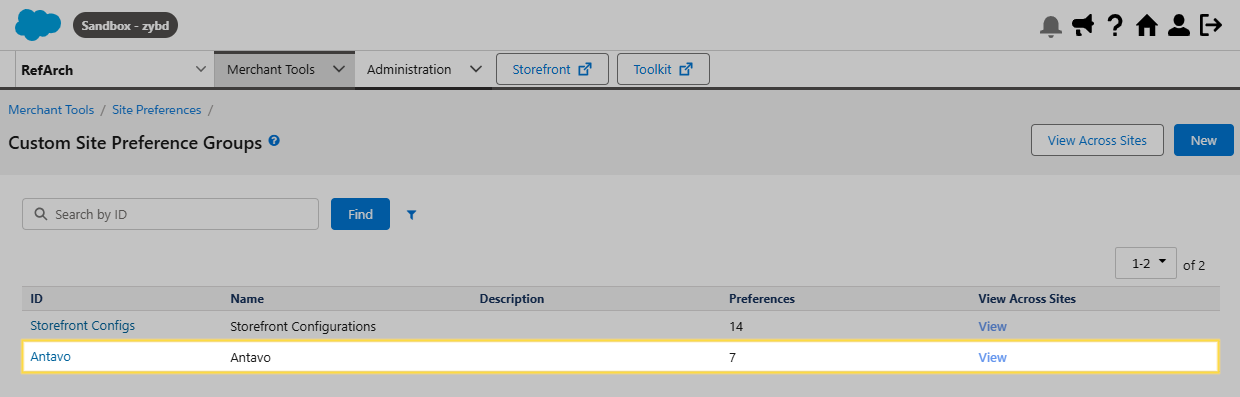
- Go to Merchant Tools > Site Preferences > Custom Preferences.
- Click Antavo - this is the name of the custom site preference group specific to Antavo.
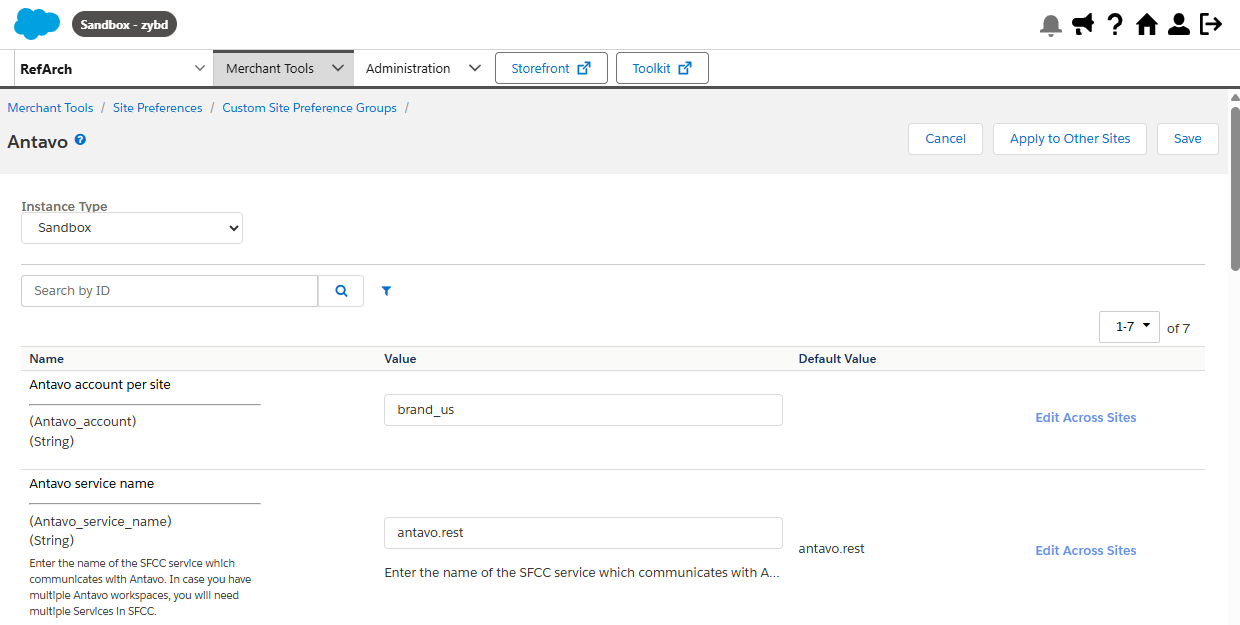
- In the Antavo account per site field, enter the account ID of the account to which you want to connect your site in Salesforce Commerce Cloud. You can find the account ID on the configuration page of the Points economy module.
- In the Antavo service name field, enter the name of the service in Salesforce Commerce Cloud which uses the API credentials for the Antavo workspace to which you want to connect your site.
Configure the point earning logic
Configure the point earning logic in SFCC according to the Incentivized purchase configuration of your workspace in the Antavo Management UI.
Make sure the values match exactly the configuration in the Management UI to avoid inconsistency between the PDP, PLP, Cart and Checkout data in your SFCC site and your Antavo workspace.
NoteThe loyalty points in SFCC are calculated using an item-level point award logic. If your Antavo workspace uses the transaction-level point award logic, there can be a slight difference between the calculated points in the two systems.
Also note that campaigns and challenges are not taken into account during the point calculation in SFCC.
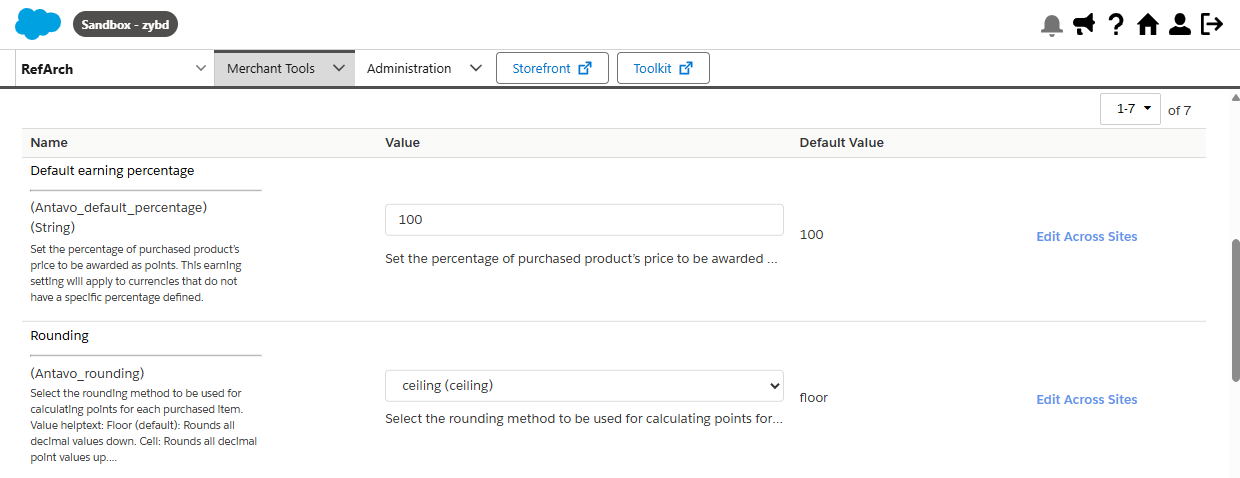
- In the Default earning percentage field, set the percentage of purchased product’s price to be awarded as points. This earning setting will apply to currencies that do not have a specific percentage defined.
- From the Rounding dropdown, select the rounding method to be used for calculating points for each purchased item.
- Round: All decimal point values will be rounded according to general mathematical rounding rules (e.g., 38.7 points will round up to 39 points; 38.3 points will round down to 38 points).
- Ceil: All decimal point values will be rounded up (e.g., both 38.3 and 38.7 points will round up to 39 points).
- Floor (default): All decimal point values will be rounded down (e.g., both 38.3 and 38.7 points will be rounded to 38 points).
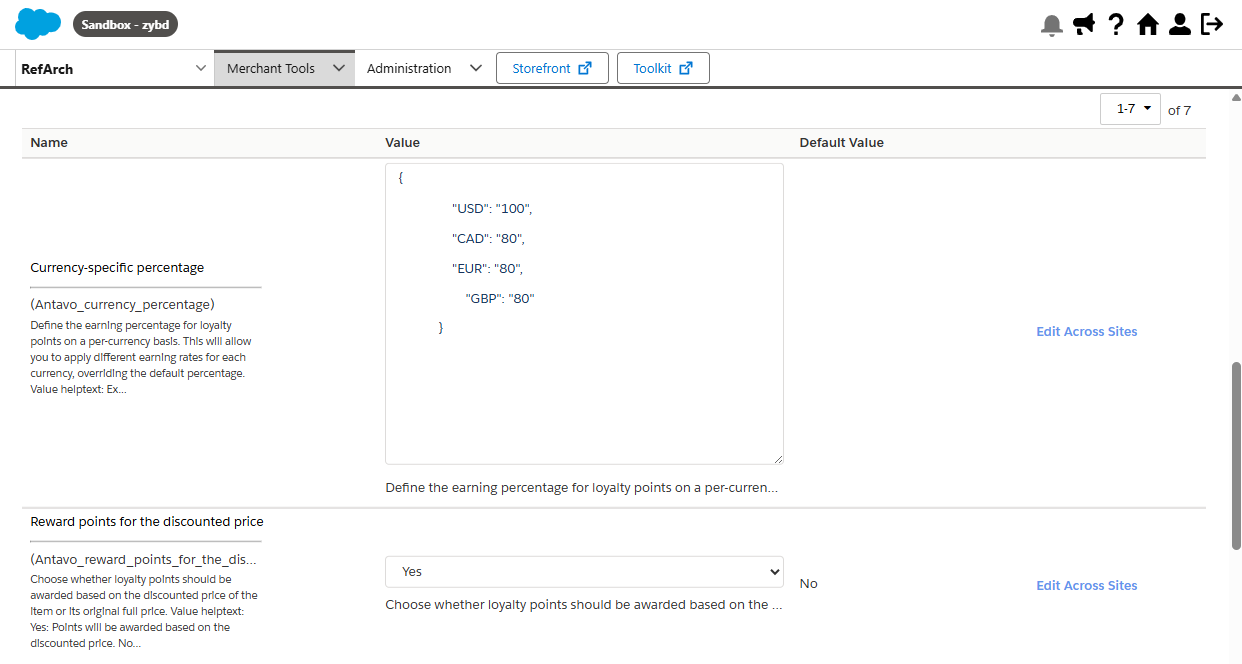
- In the Currency-specific percentage field, define the earning percentage for loyalty points on a per-currency basis. This will allow you to apply different earning rates for each currency, overriding the default percentage.
- In the Reward points for the discounted price field, choose whether loyalty points should be awarded based on the discounted price of the item or its original full price.
- Yes: Points will be awarded based on the discounted price.
- No (default): Points will be awarded based on the original full price of the item.
Configure the field mapping
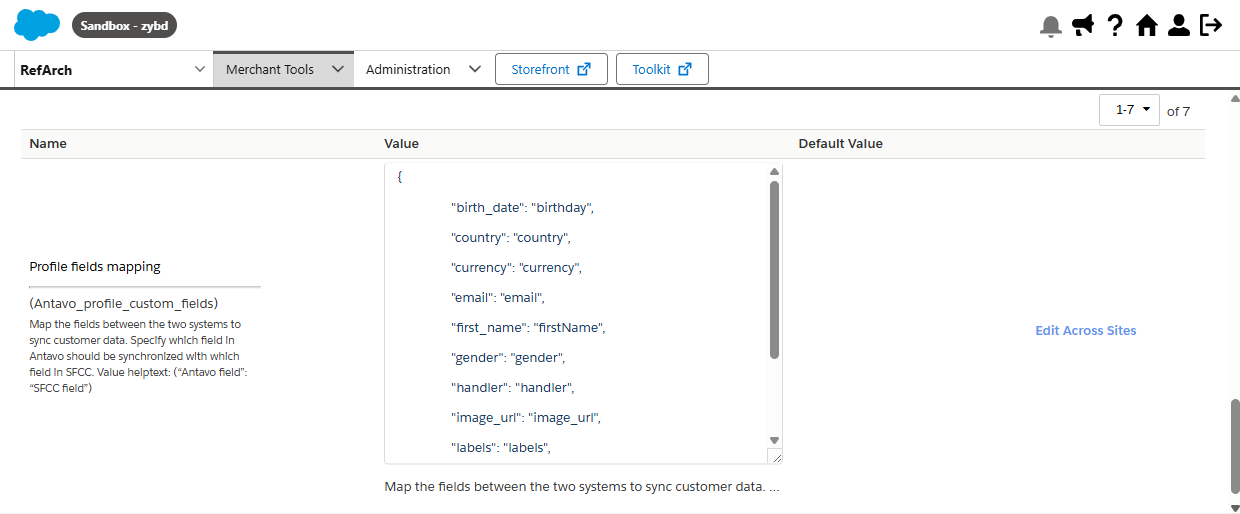
- In the Profile fields mapping field, map the fields between the two systems to synchronize customer data. Specify which field in Antavo should be synchronized with which field in SFCC (Antavo fields come first, followed by the respective SFCC field).
- Click Save at the top of the page.
Configure the checkout-related jobs
Following the site import, two optional Antavo-specific jobs become available:
AntavoCheckoutFallbackAntavoCheckoutAccept
To view the Antavo-specific jobs, go to Administration > Operations > Jobs.
AntavoCheckoutFallback
When executed, this job checks for any orders which have not yet been sent to Antavo and which do not have a failed status. The job iterates through all eligible orders and triggers the registering of a checkout event in Antavo for each order. If the order is sent to Antavo successfully, the job updates the order's custom flag to true, so that the order is skipped in future iterations.
NoteExecuting the
AntavoCheckoutFallbackjob is recommended to ensure all checkout-related data is synchronized without any loss.
To set up a recurrent execution of the job, follow the steps in the Schedule the Antavo-specific jobs.
No additional configuration is required for this job.
AntavoCheckoutAccept
NoteThe
AntavoCheckoutAcceptjob can be configured and executed if the Checkout accept module is enabled in your Antavo workspace, and the type of the checkout accept mechanism is set to Manual.The functionality provided by this job can only be used in place of the Auto Accept mechanism in the Antavo Management UI.
When executed, this job fetches all orders made on a certain day based on a specified pending period (given in days), and triggers the registering of a checkout_accept event in Antavo. After a checkout_accept event is successfully registered, the pending points are awarded to the customer.
To set the pending period:
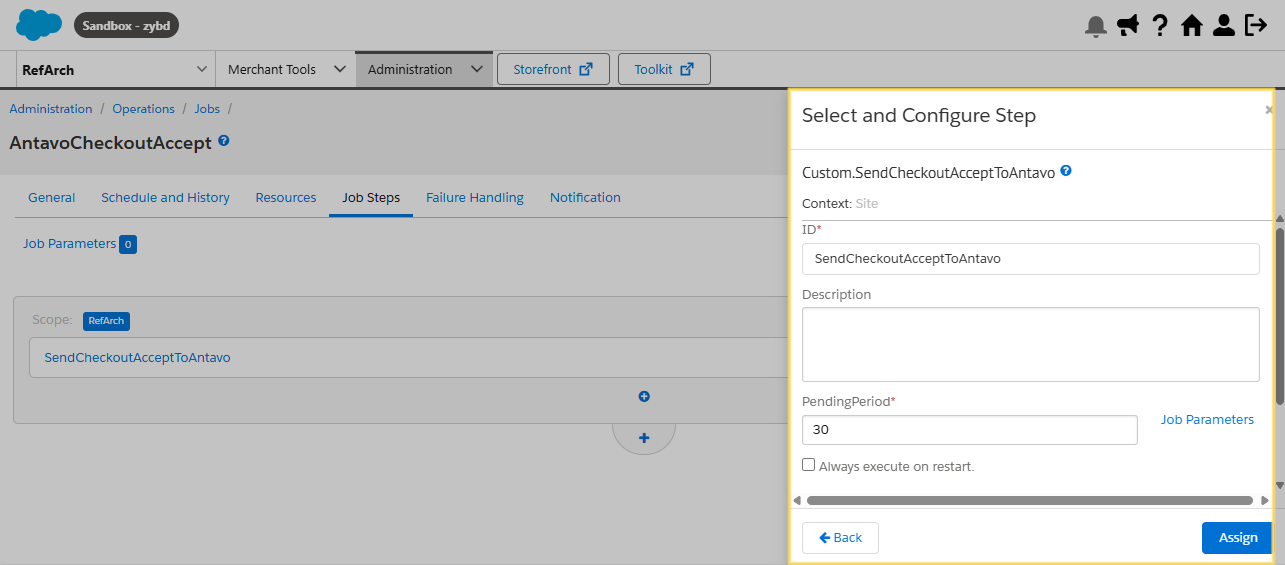
- Go to Administration > Operations > Jobs, then click AntavoCheckoutAccept.
- Open the Job Steps tab, then click SendCheckoutAcceptToAntavo.
- In the PendingPeriod field, enter the number of days during which the order is pending.
- Click Assign.
Schedule the Antavo-specific jobs
The Antavo-specific jobs can be executed manually or they can be scheduled to run at a specific time. Follow the steps below to schedule a job:
- Go to Administration > Operations > Jobs, then click the name of the job you want to schedule.
- Open the Schedule and History tab.
- Mark the Enabled checkbox to run the job according to a schedule.
- Select whether to trigger the job once on a specific date, or if it should run at recurring intervals.
- If you selected the recurring interval option, set up the dates between which the job should run, then specify the run time according to your needs.
Project-specific overrides
According to SFCC best practices, all project-specific overrides must be implemented within the project's custom Antavo cartridge, maintaining the same file and directory structure. Example paths for overrides:
antavo/cartridges/int_antavo/cartridge/templates/resources/antavo.propertiesantavo/cartridges/int_antavo/cartridge/templates/resources/forms.properties
This approach ensures consistency and simplifies maintenance. Adhering to this standard helps avoid conflicts and streamlines future updates.
Loyalty program fields on the storefront
Below, you can find more information on the loyalty program fields that are displayed on the storefront depending on the architecture of your project.
SFRA architecture
On projects using the SFRA architecture, the fields related to the loyalty program appear in the following places on the storefront:
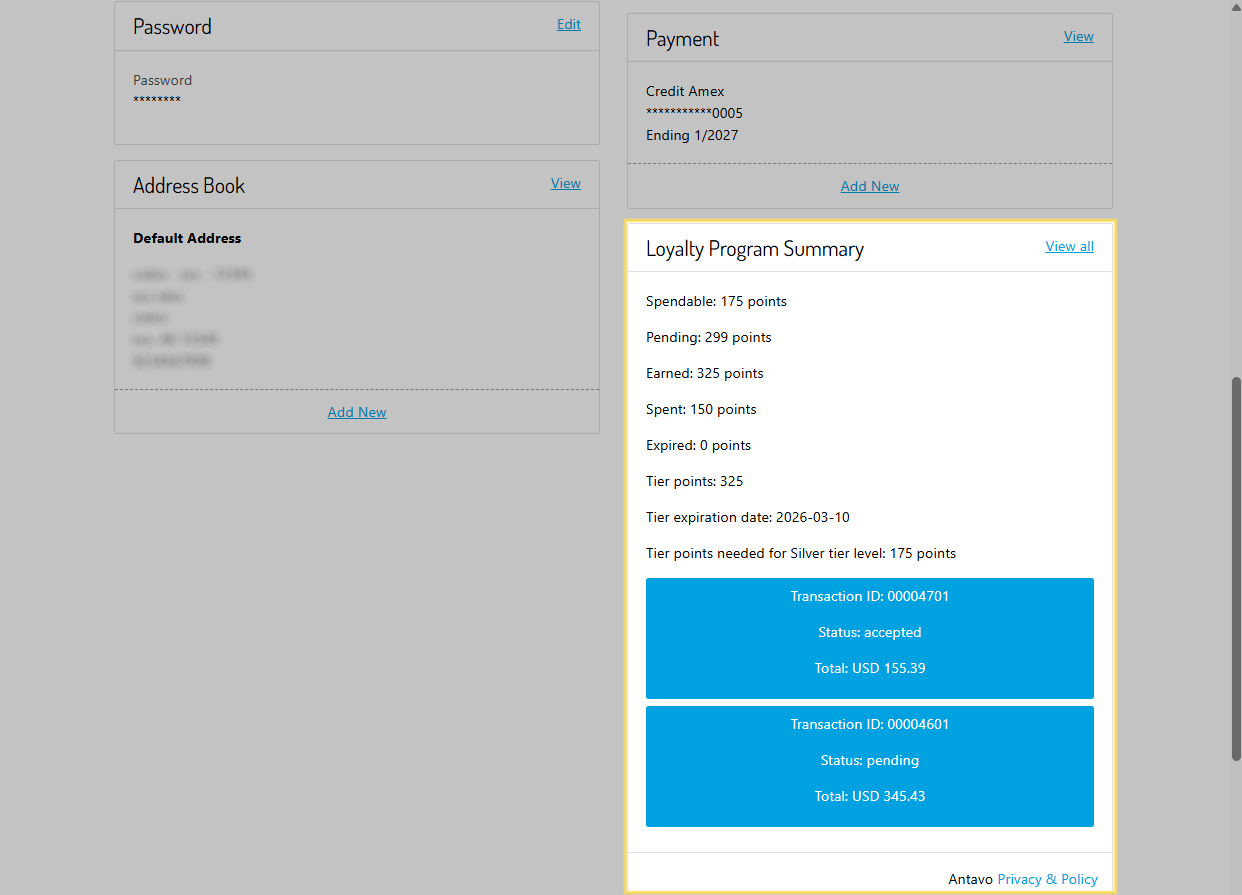
- The Loyalty Program Summary section appears on the authenticated user's Dashboard
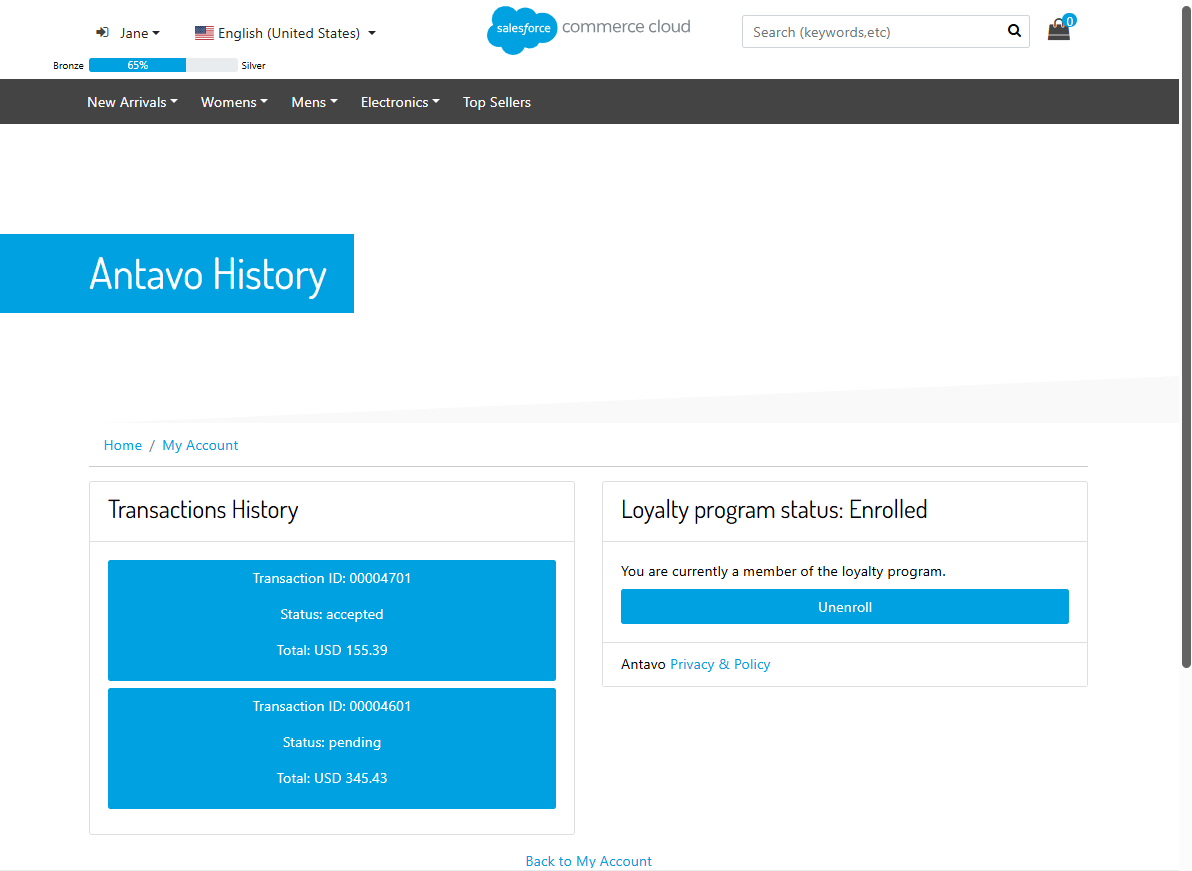
- The loyalty program status and transaction history appear on the authenticated user's loyalty program history page
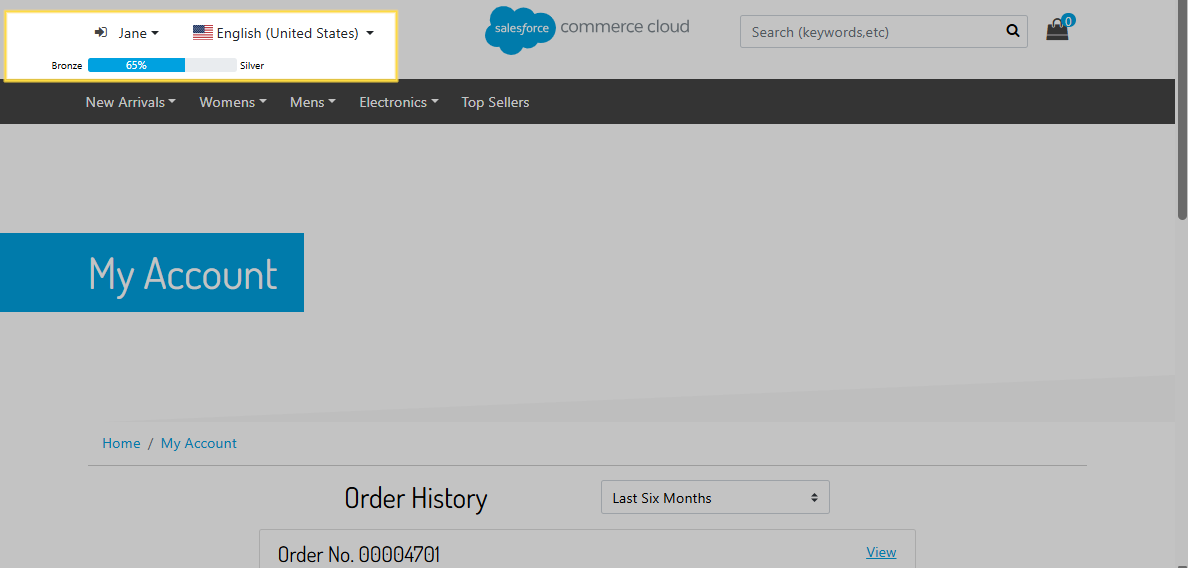
- A loyalty program tier progress bar appears under the authenticated user's account name at the top of the page
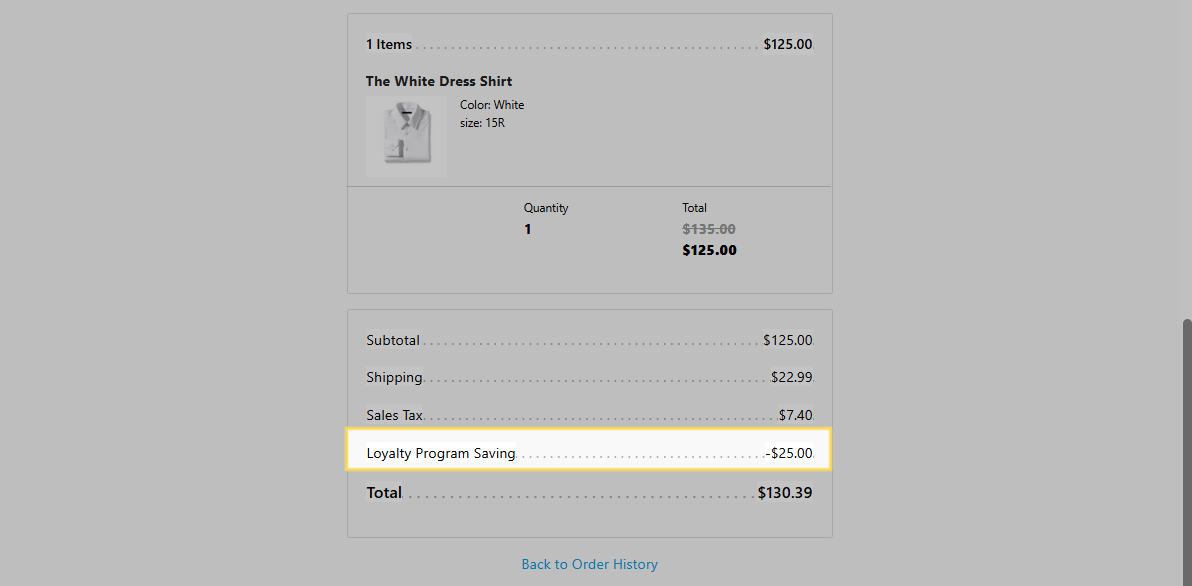
- The Loyalty Program Saving field appears on the Order Detail page of an order
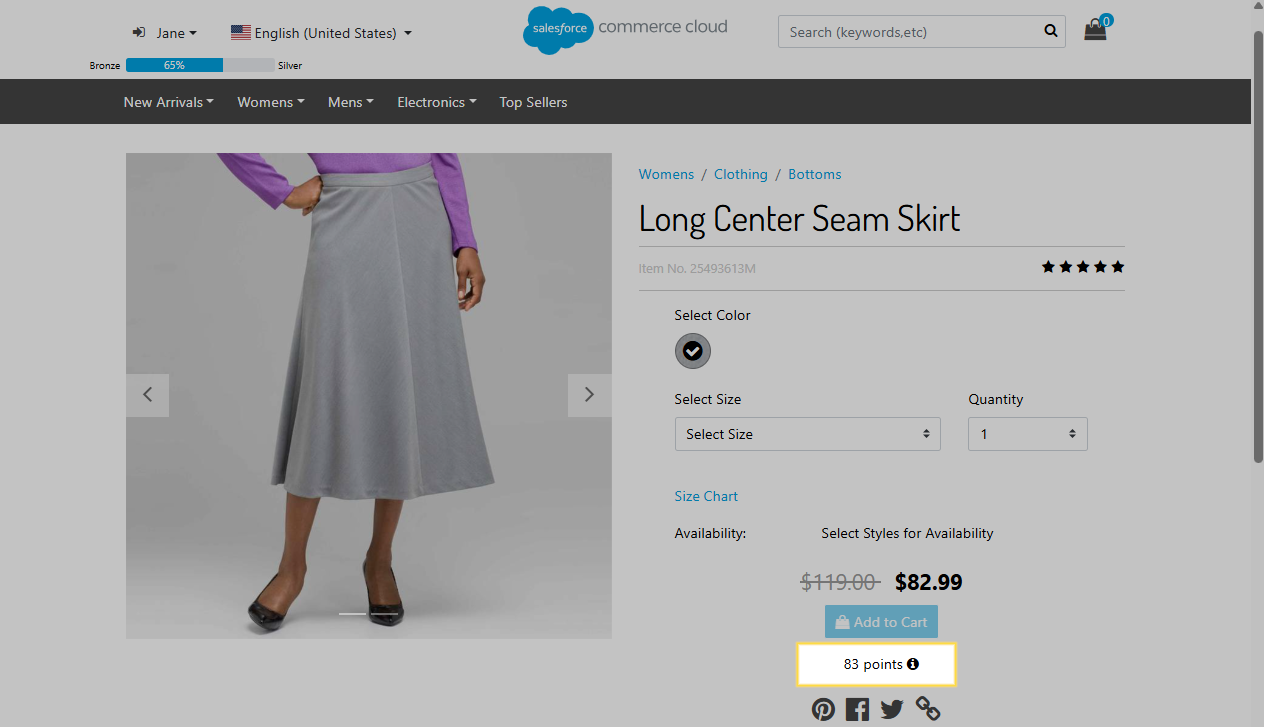
- The calculated loyalty points for a product appear on the product catalog page and on the product's page under the Add to Cart button
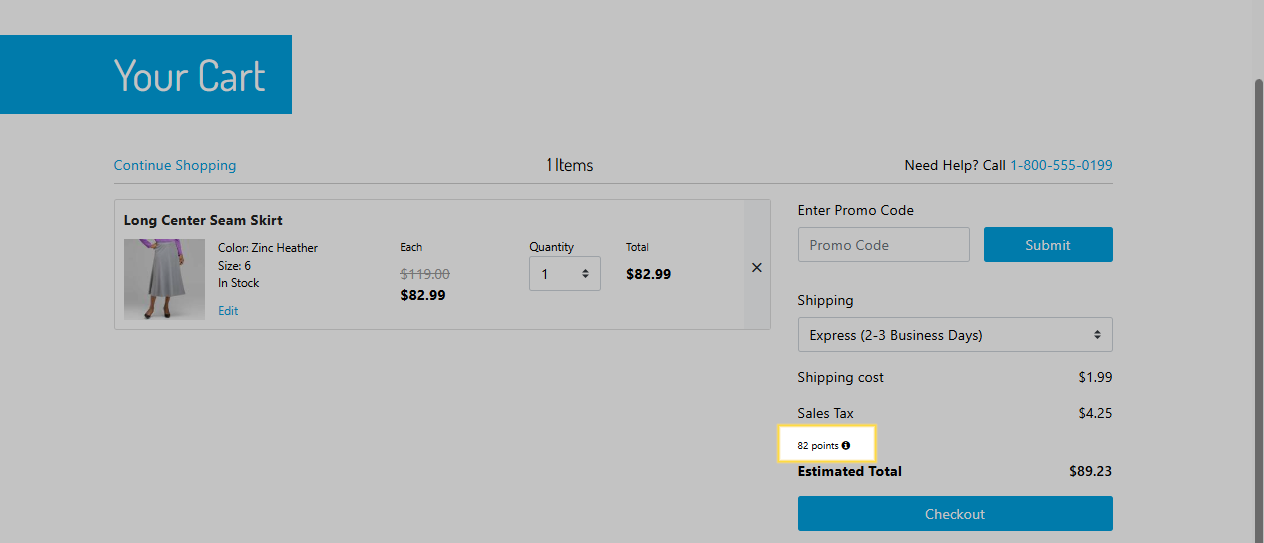
- The calculated loyalty points are also displayed on the Your Cart page
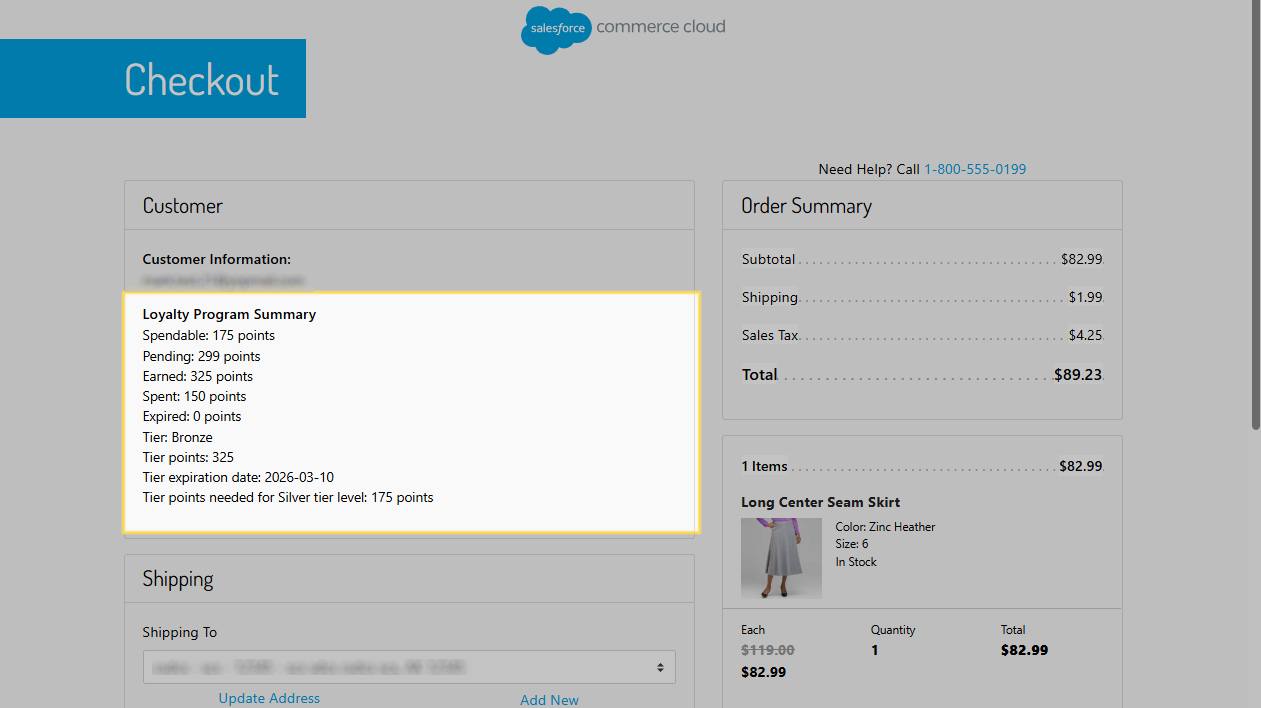
- On the Checkout page, the loyalty program summary section appears under Customer
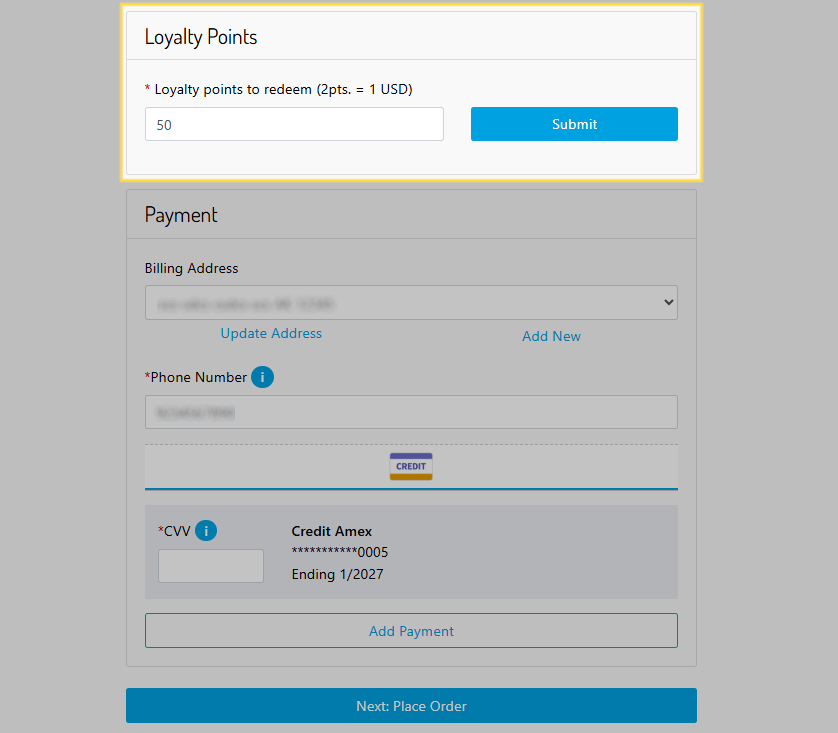
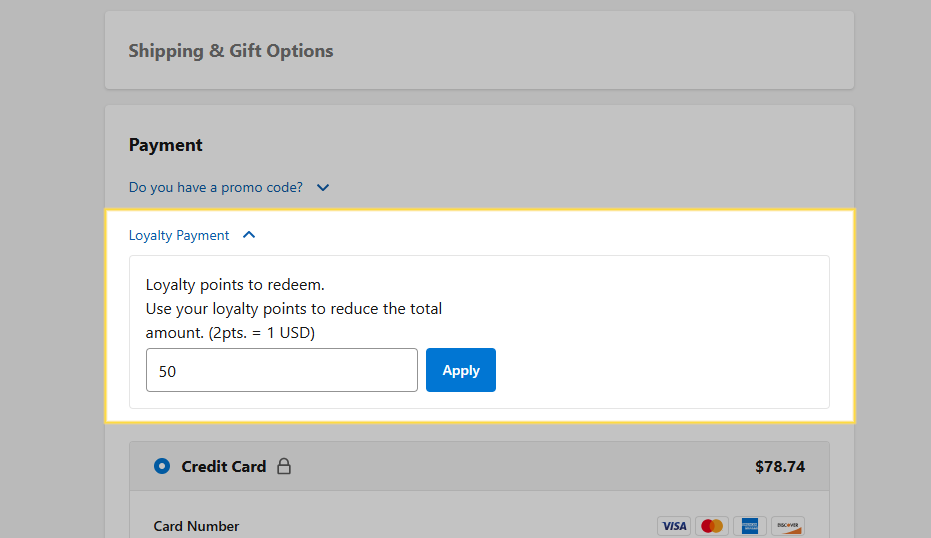
- Loyalty points can be redeemed after proceeding to the payment section of the Checkout page
SiteGenesis architecture
On projects using the SiteGenesis architecture, the fields related to the loyalty program appear in the following places on the storefront:
- The Loyalty Program Summary section appears on the authenticated user's My Account page
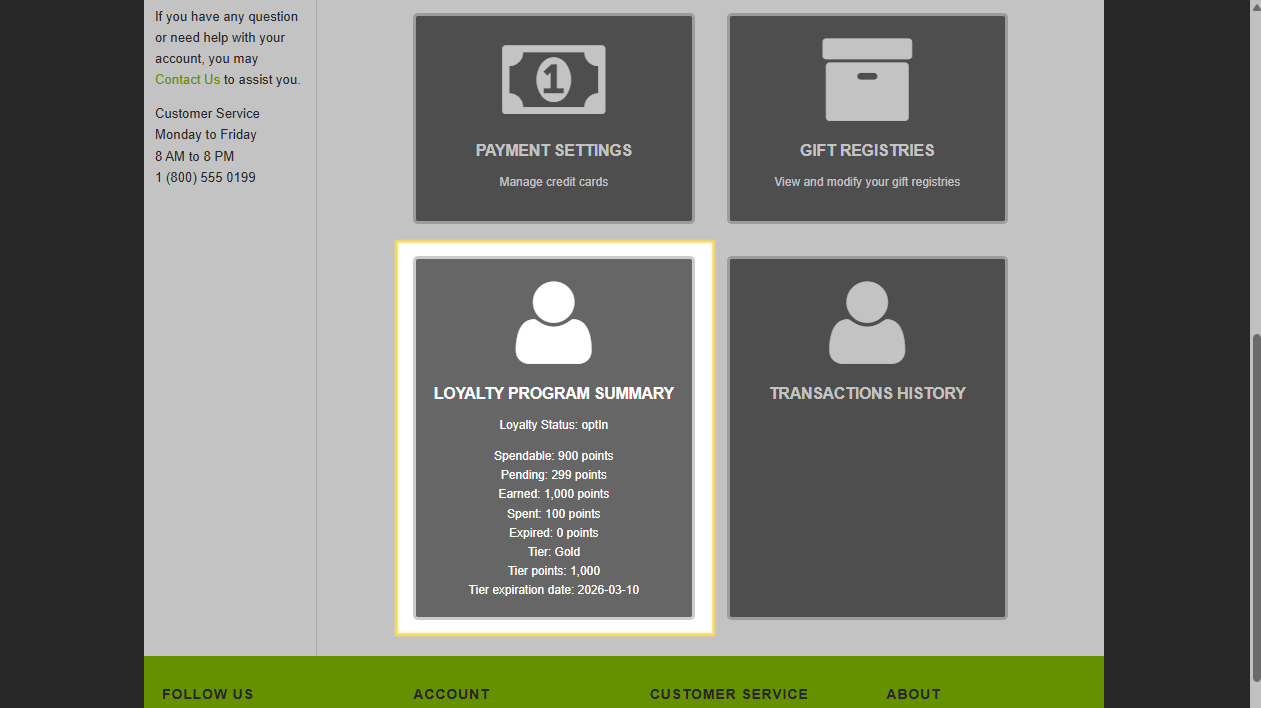
- The loyalty program status page which allows the user to opt out of the loyalty program can be accessed by clicking Loyalty Program Summary on the authenticated user's My Account page
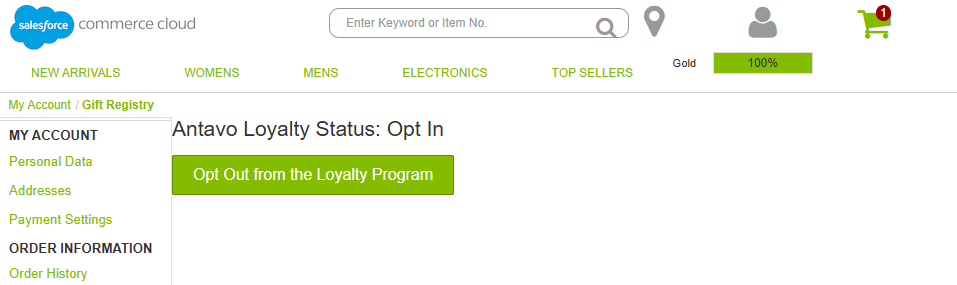
- A loyalty program tier progress bar appears in the navigation bar at the top of the page

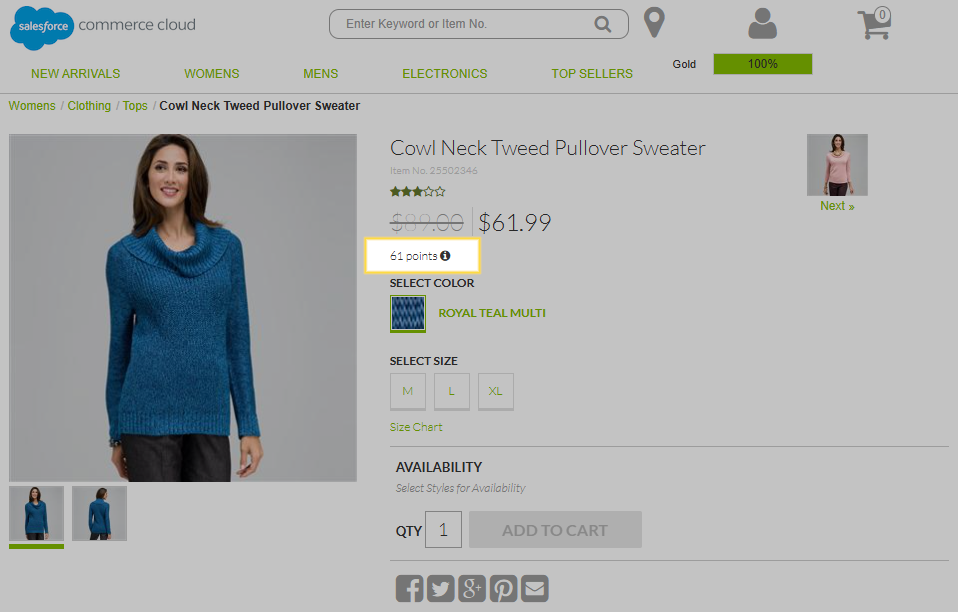
- The calculated loyalty points for a product appear on the product catalog page and on the product's page under the product's price
- The calculated loyalty points are also displayed on the Cart page
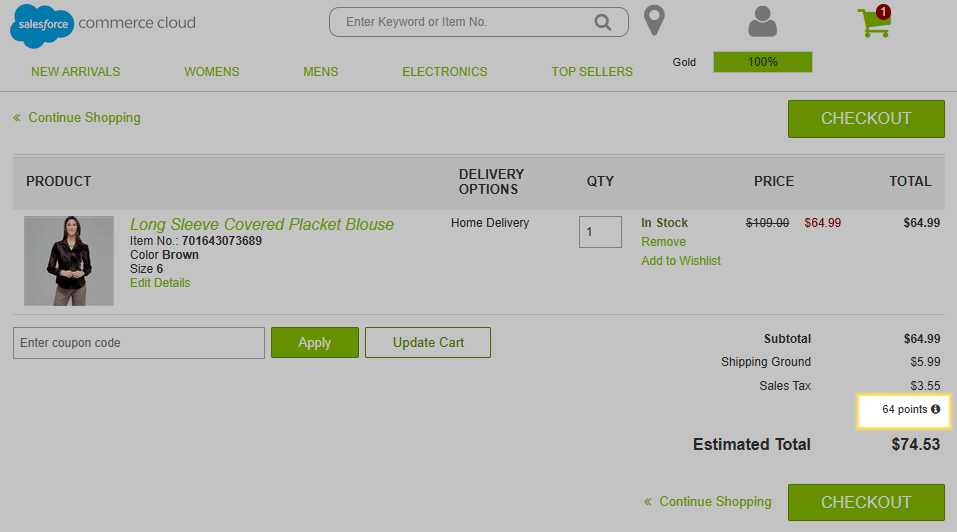
- On the Checkout page, the calculated loyalty points appear in the Order summary section
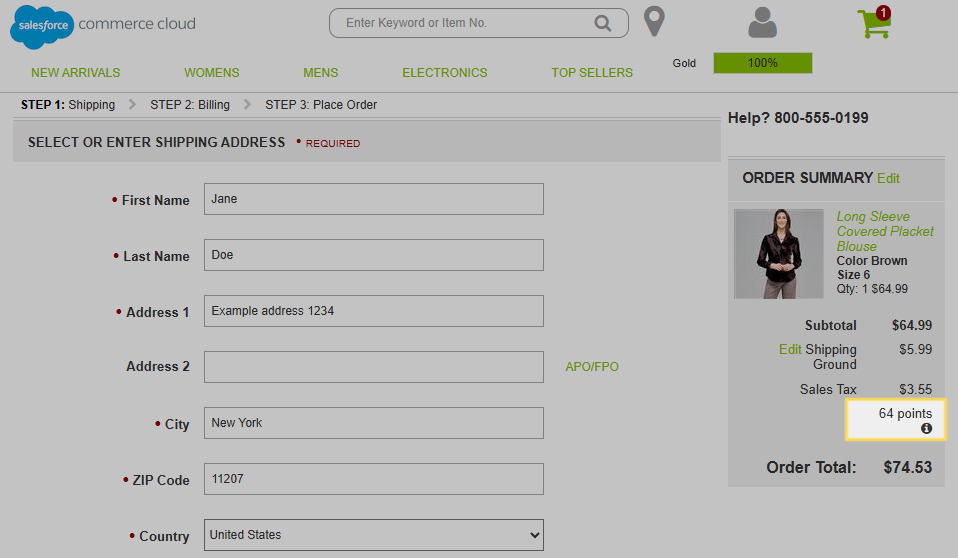
- After proceeding to billing, loyalty points can be redeemed in the Loyalty program summary section of the Checkout page
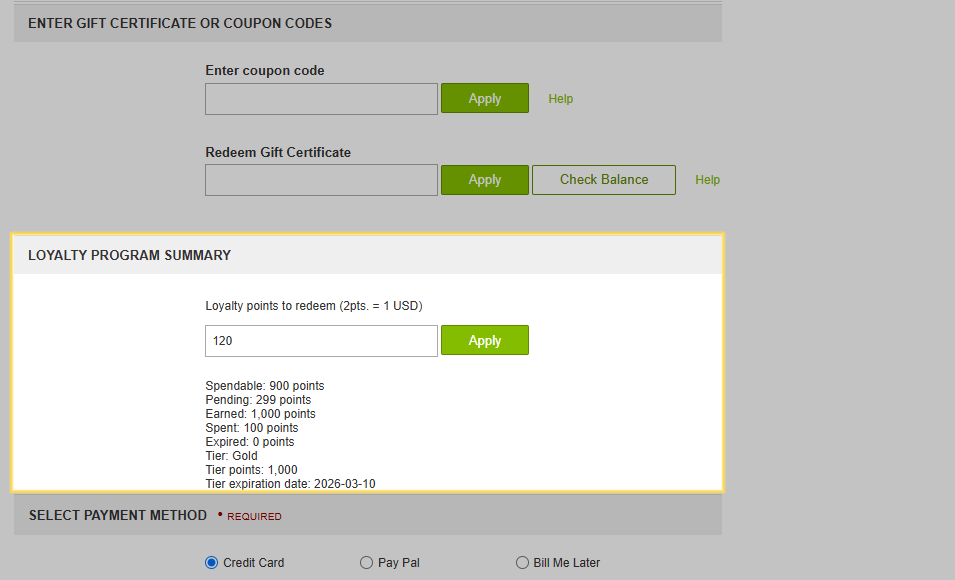
PWA Kit architecture
On projects using the PWA Kit architecture, the fields related to the loyalty program appear in the following places on the storefront:
- The Loyalty Program Summary and the option to opt out of the loyalty program appear in the Antavo tab of the authenticated user's account details
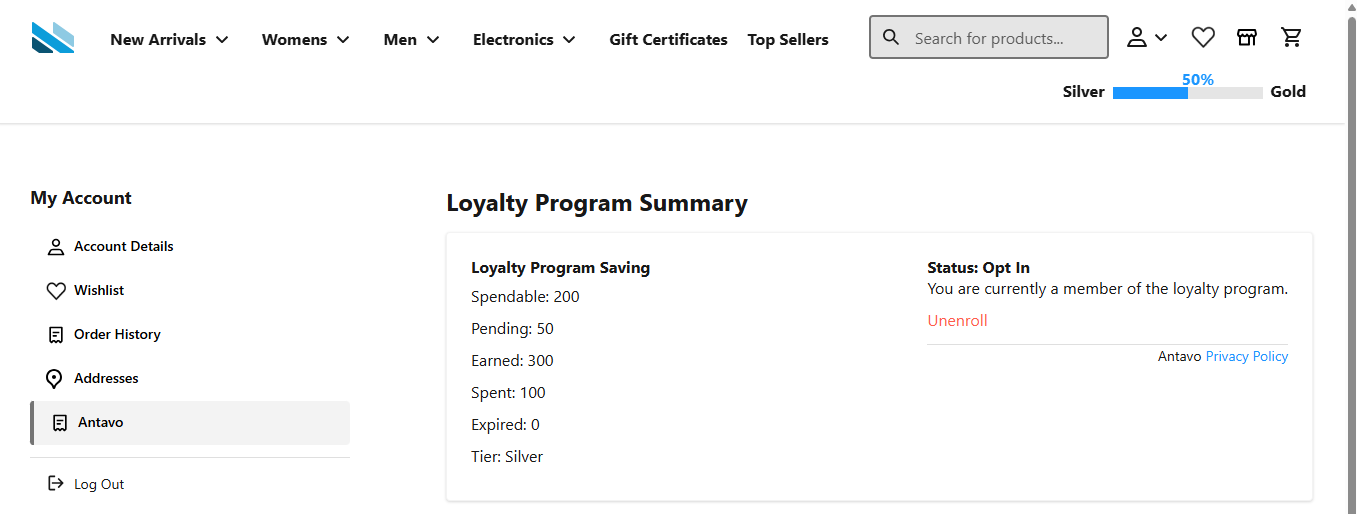
- A loyalty program tier progress bar appears in the navigation bar at the top of the page
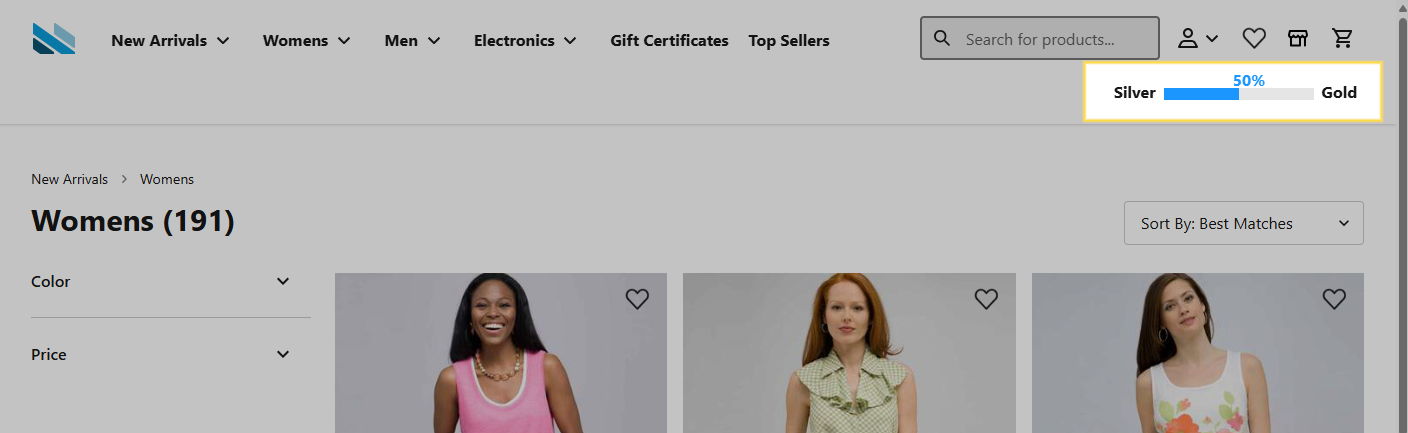
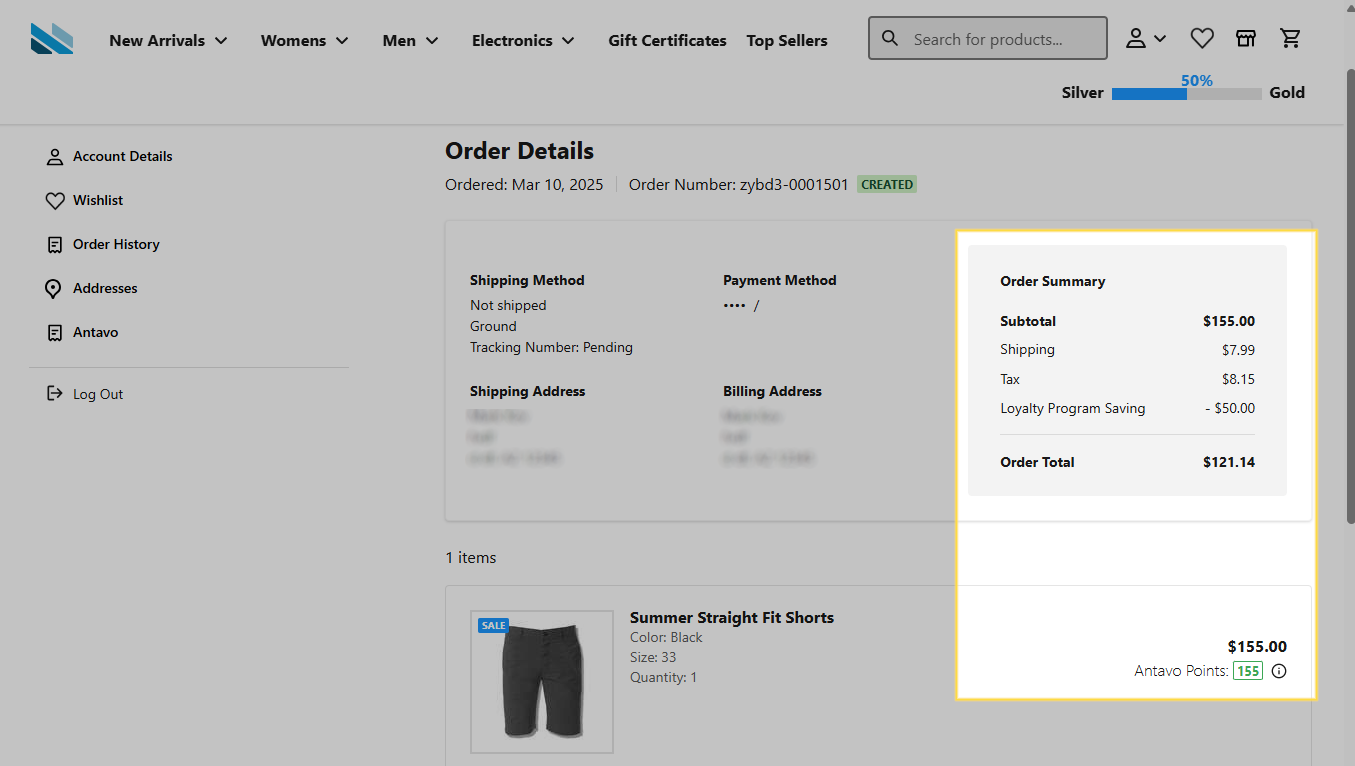
- On the Order Details page, the earned loyalty points for each ordered item are displayed under its price, and the total number of points is displayed in the Loyalty Program Saving field under Order Summary.
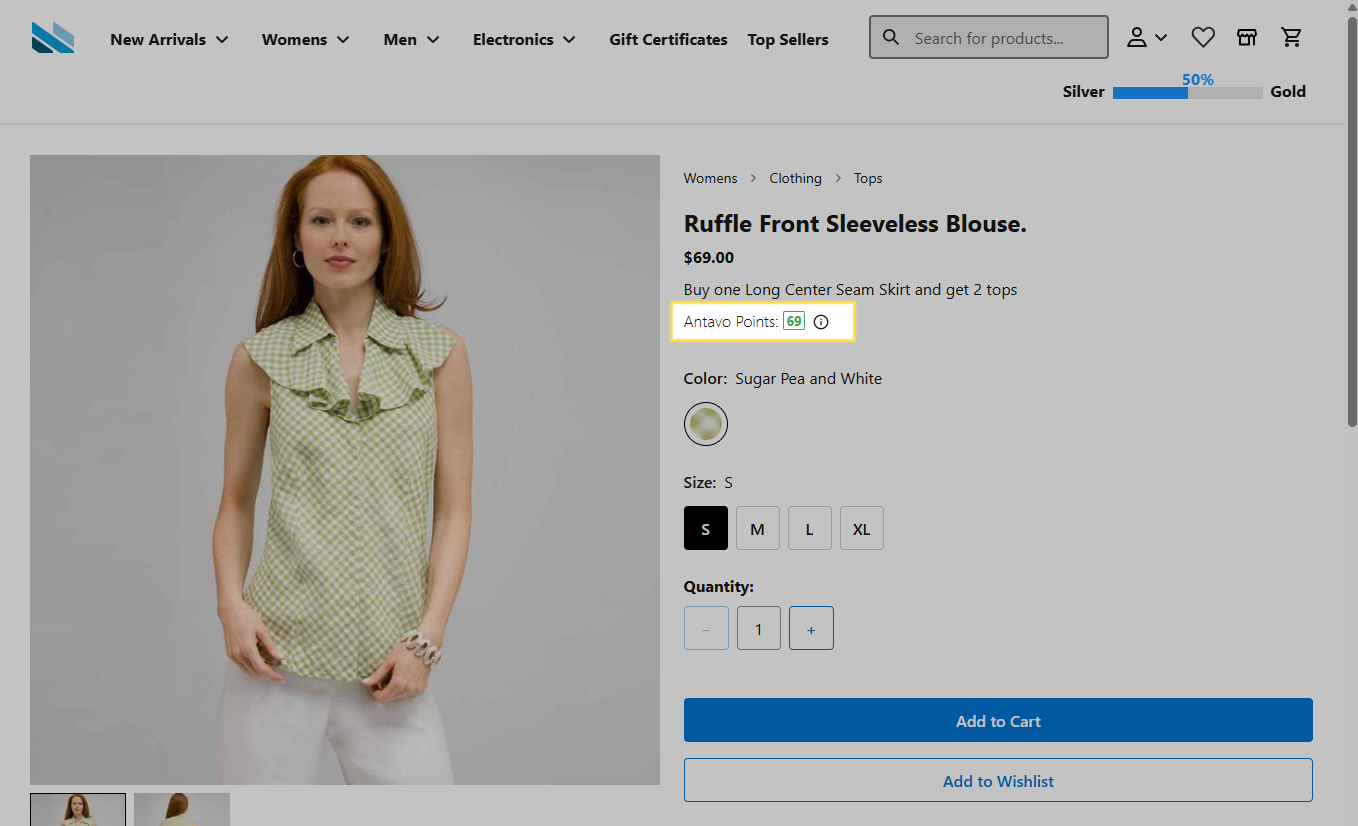
- The calculated loyalty points for a product appear on the product catalog page and on the product's page under the product's price tag
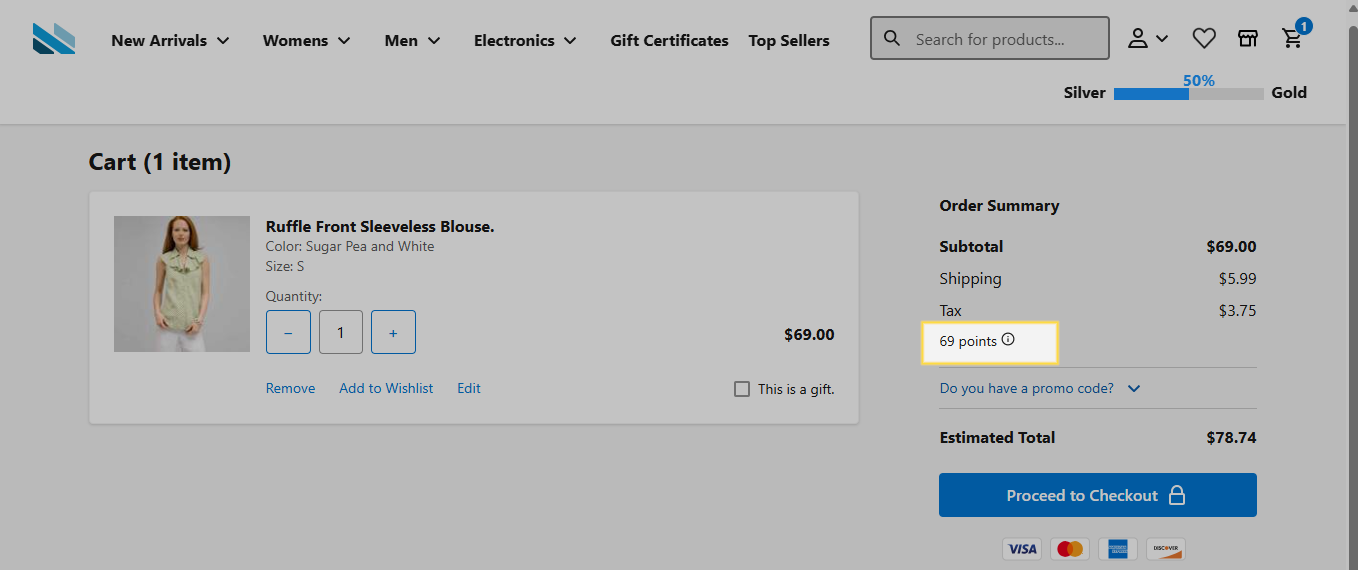
- The calculated loyalty points are also displayed on the Cart page under Order summary
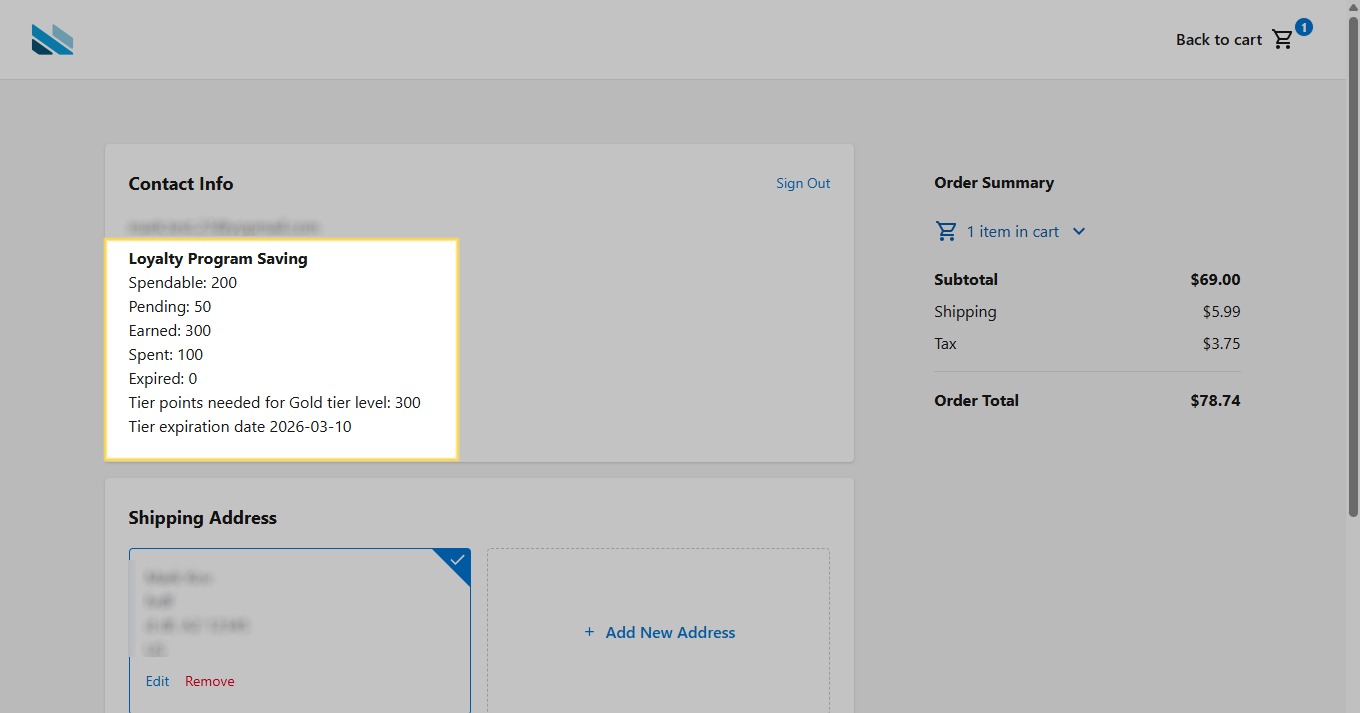
- The Loyalty Program Summary section appears on the Checkout page
- Loyalty points can be redeemed on the Checkout page under Loyalty Payment
Updated over 1 year ago